 Code Editor
User guideCode Editor for Mac
Run Python locally
Read input in the console and save a repeatable run configuration.
Run a script that asks a question
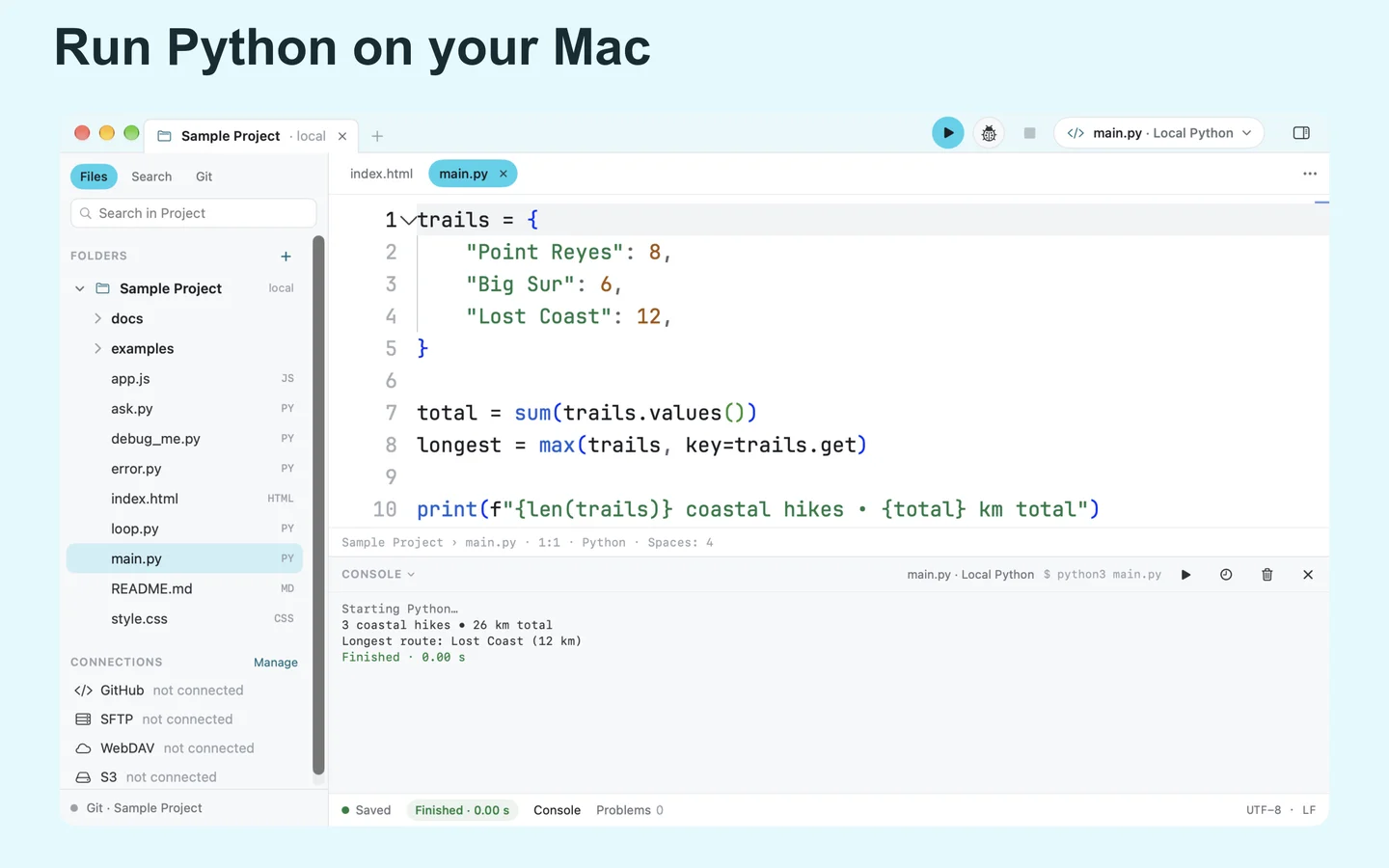
- Open Sample Project and select
ask.py. This script reads a name withinput()and prints a greeting. - Press ⌘R with the script active. When the console shows
Your name:, enterAdaand submit it. - Look for
Hello, Ada!in Console. If the panel is hidden, use ⇧⌘Y to toggle it. To end a running script, choose Stop or press ⌘..
Repeat a run with the same input
- In the project’s run menu, open Edit Configurations…. Choose or add a Local Python configuration and set the file to
ask.py. - Enter
Adain Stdin. Leave Working Folder set to the script’s folder. For scripts that read command-line options, enter those separately in Arguments. - Choose Done, select that configuration and run it with ⌥⌘R. It prints the same greeting without waiting for typing. Clear Stdin to return to interactive input.
When a script waits or reads the wrong file
A script paused at input() is waiting for a line in Console. A relative path in open("data.txt") starts from the configured working folder. Choose the project root containing the data, or place the file beside the script if you use the default.
Local Python runs on your device. The separate Remote Run service for supported languages is a Pro feature and asks for consent to upload code. Web Preview runs page scripts inside the preview.