 Code Editor
User guideCode Editor for Mac
HTML, CSS and live preview
Edit the sample page, follow its stylesheet and test the JavaScript counter.
Open a working page
- Choose Projects → Open Sample Project. In Files, select
index.html. The page referencesstyle.cssandapp.jsbeside it. - With the HTML file active, press ⌘R. Alternatively, choose its Web Preview configuration and click the triangular Run button.
- Click Add one. The counter beside the button should go from 0 to 1. This checks that the JavaScript loaded as well as the HTML.
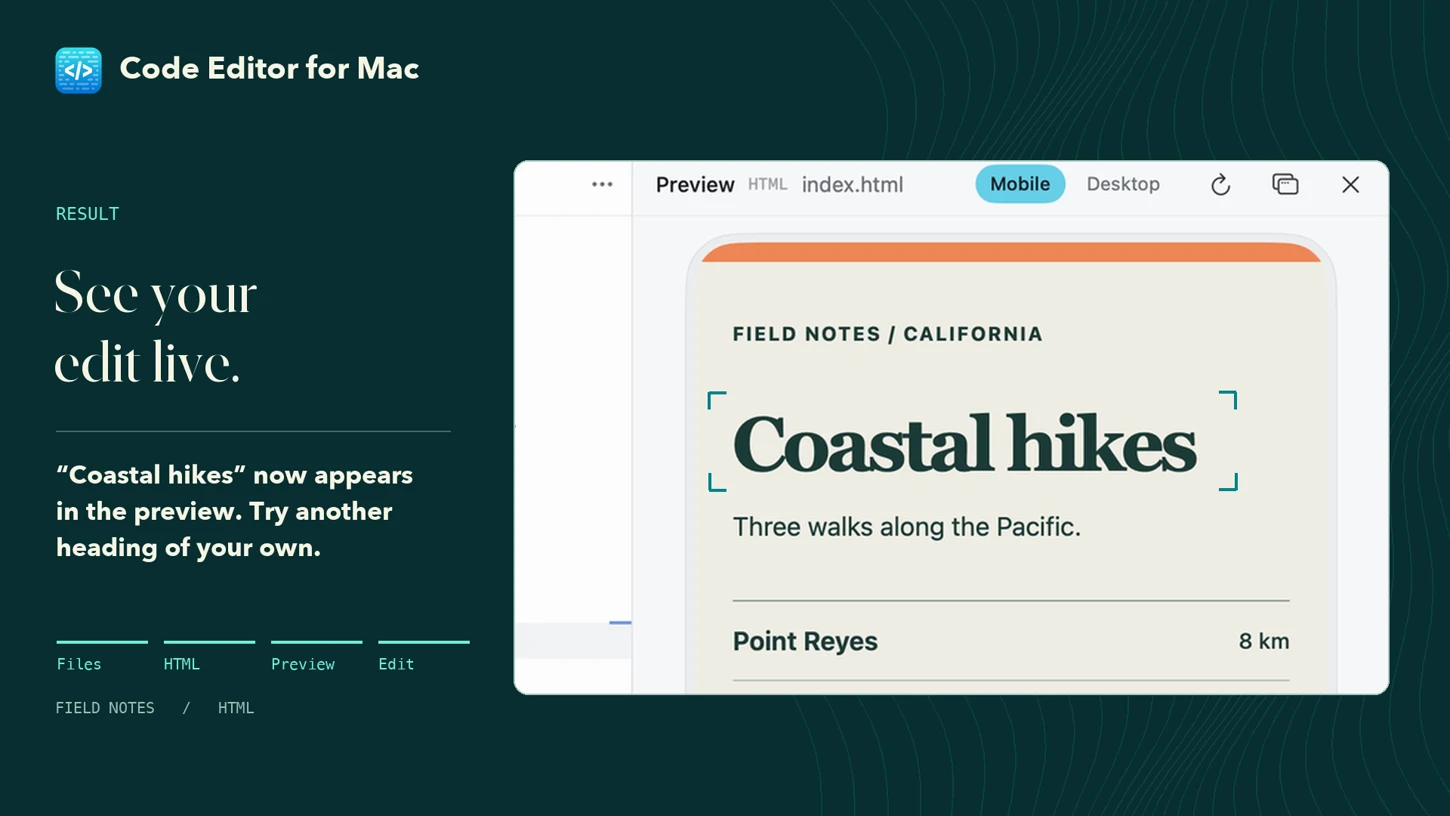
Change the page and see the result
Find Hello, Code Editor inside the <h1> element. Replace the text with Hello, Mac and press ⌘S. The preview reloads after the save. The counter starts again at zero because the script runs again with the page.
Now edit --accent in style.css and save. The button in the same preview changes colour. Use Mobile and Desktop to check the layout, or Open in Window on Mac to give the preview more room.
If the page or its styles look wrong
An old heading remains. Save the edited file, then click Reload in the preview. Automatic reload listens for saves inside the folder serving that preview. Check the filename in the preview header when several pages are open.
HTML appears without colours or interaction. Compare the href and src paths with the Files tree. Moving a stylesheet to css/style.css also requires changing the link in the HTML. Open Console in the preview to inspect JavaScript messages from the page. Reload starts a fresh log.